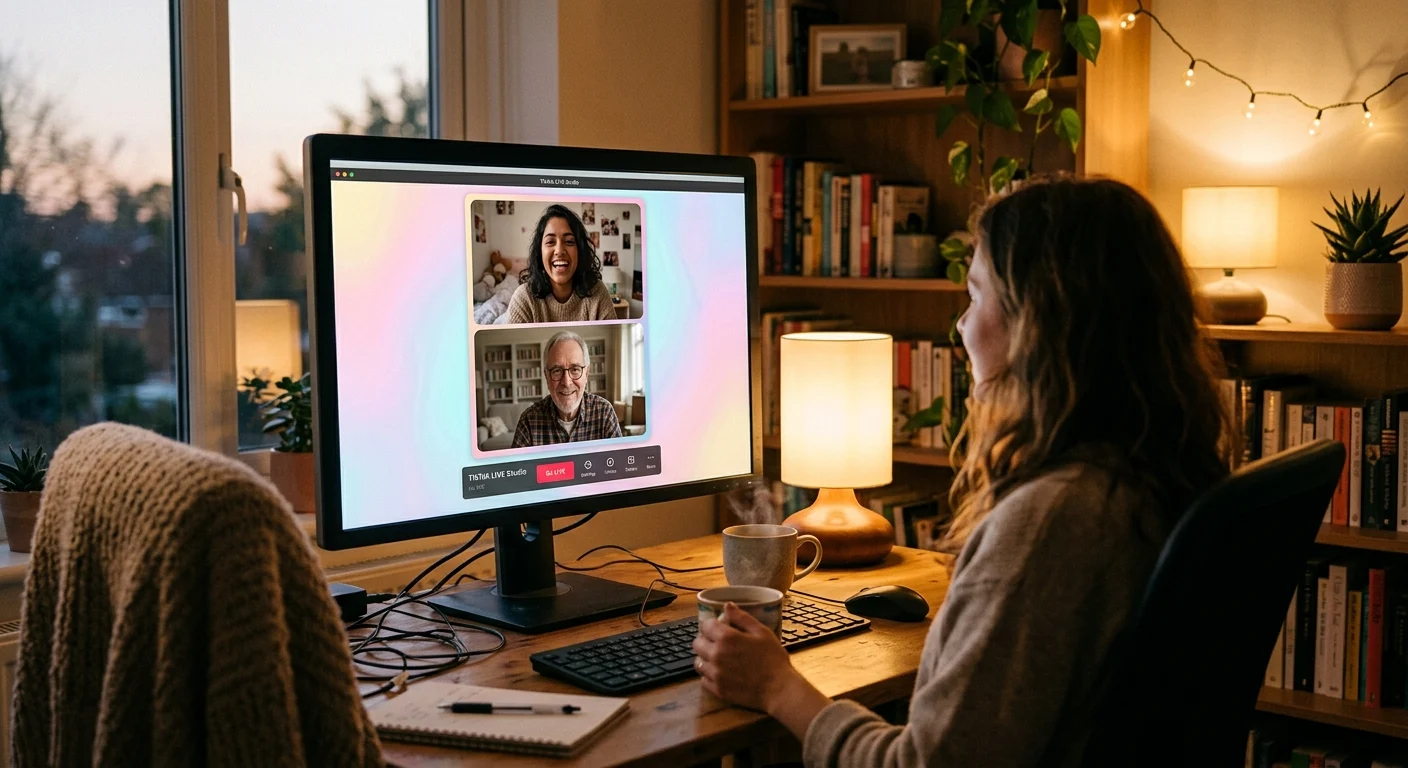
You're sitting on your bed, a cold seltzer in hand, catching up with your best friend who lives three states away. You're both live, but on the screen, you're squeezed into those tiny, side-by-side squares. Because of the vertical mobile crop, half of your friend's head is cut off, and your shoulders are awkwardly squeezed out of frame. It feels less like a relaxed catch-up and more like you're talking through a cramped window. We've all been there, and honestly, it's exhausting to watch and even harder to host.
The Problem with the Default 'Versus' Look
When you're trying to build a cozy corner on the internet, layout is everything. The default side-by-side layout is fine for quick battles, but if you're planning a split-screen hang with your favorite person, it can feel incredibly sterile. Viewers tune in to feel like they're sitting on the rug in your living room, not watching a business presentation. To make it feel natural, we want to stack our screens vertically—like a high-end podcast. It gives your faces room to breathe and leaves beautiful space for the chat to flow.
A good live stream shouldn't feel like a Zoom call with your tax accountant; it should feel like a cozy kitchen table conversation.
How to Set Up the Vertical Stack
To get this look, you'll need to use TikTok LIVE Studio on your PC or Mac. It sounds high-tech, but I promise it's just a bit of digital paper-cutting. Once you've got your guest joined, they will appear as a source in your studio. Instead of letting the software auto-arrange you, you're going to create custom sources. First, crop your own camera feed into a nice, rounded vertical rectangle, or even a soft square, and place it at the top half of your vertical canvas. Next, do the exact same thing with your guest's feed and place them right below you.
Dressing Up the Empty Spaces
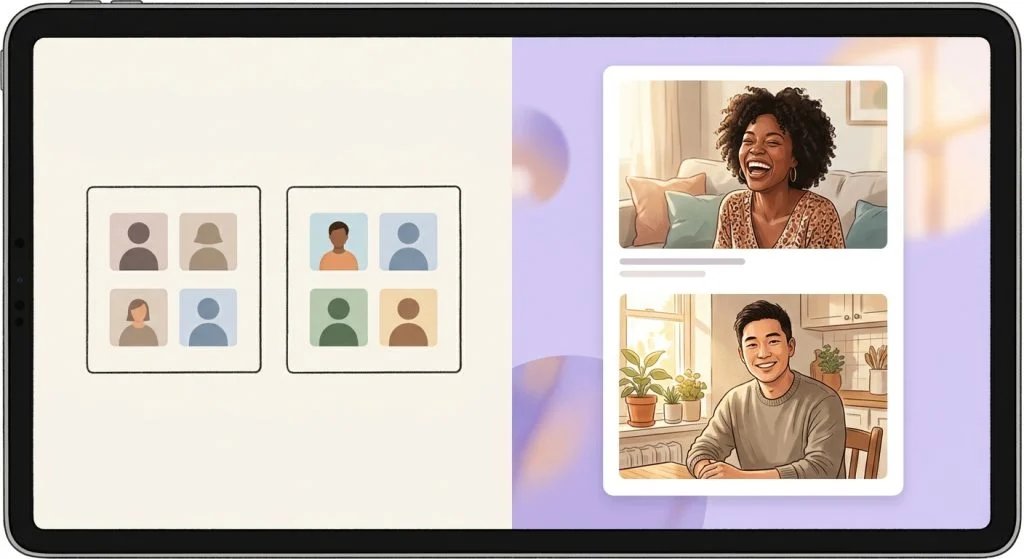
Once you've stacked your screens, you'll notice you have some lovely empty space on the sides or at the very bottom. This is where the magic happens! You can slide a cozy, warm-toned wallpaper behind your video sources. If you're hosting multiple people, keeping the layout clean is key to keeping the energy up. You want to make sure your setup helps with passing the mic: how to keep a 4-person split-screen hangout cozy, not chaotic. By placing your chat overlay in the empty space next to your stacked feeds, your viewers can see their own names popping up in a dedicated, beautiful layout, rather than having their text block your faces.
Give this stacked setup a try on your next stream. It takes about five minutes of clicking around beforehand, but the moment your regulars pop in and see how spacious and clean it looks, they'll immediately feel the upgrade. It's the difference between a cramped hallway chat and a long, comfortable late-night phone call.